Resend from the game
Join the server you play on. Press Esc → Session → Rust+, open Paired and click Try pairing again.
You have allowed push notifications from this server.
Learn how to register bases, walls and territories, track TCs and organize the map with your clan.
Open a procedure to follow the actions in order. The button names correspond to the panel.
Sign in with your Google Account. Link your Steam account the first time you sign in.
Use the same Steam in game, Rust+ and FrontWar. Pairing the server and authorizing FrontWar are different steps.
You can pair the server with Rust+ Web on a computer, without installing Rust+ on a phone. The request is sent from the game and confirmed in the browser. Then use FrontWar+ in Chrome to authorize FrontWar in Connections.
Go to app.playrust.com and enter the same Steam used in Rust. Open Settings and check notifications. Keep this tab open during pairing.
Open Rust+ Web ↗If No servers available appear, this does not yet mean failure: the game server remains to be added.
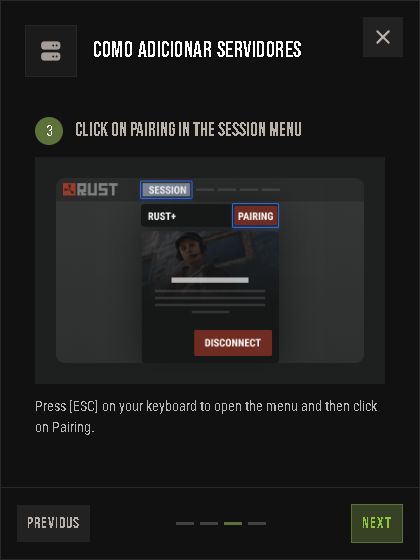
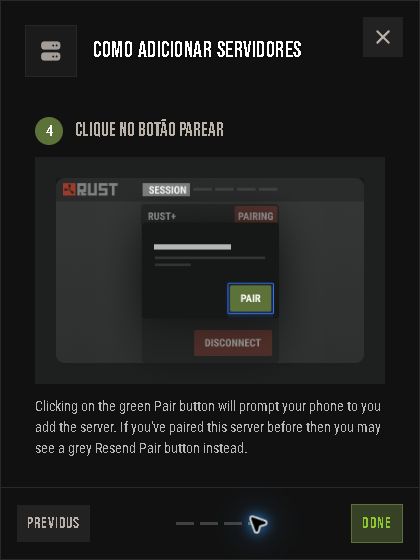
Join the server you play on. Press Esc and open Session → Pairing. Click Pair. If you have paired before, use Resend Pair.
In previous versions, this option appears as Rust+ → Pair with server. The server must support Rust+.
Enlarge screenshot ↗
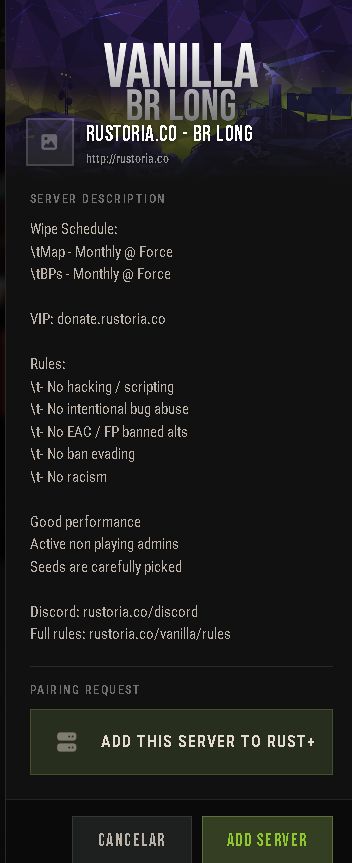
Enlarge screenshot ↗Return to Rust+ Web. The order may open automatically; If it doesn't open, check the notification bell. Check the server name and click Add Server. Open Central and confirm that the server is selected and displays current data.
If the request does not appear, check your Steam account and notifications, then resend the pairing request in the game. A server added in the mobile app may still need to be added in this browser.
View the official Facepunch guide ↗
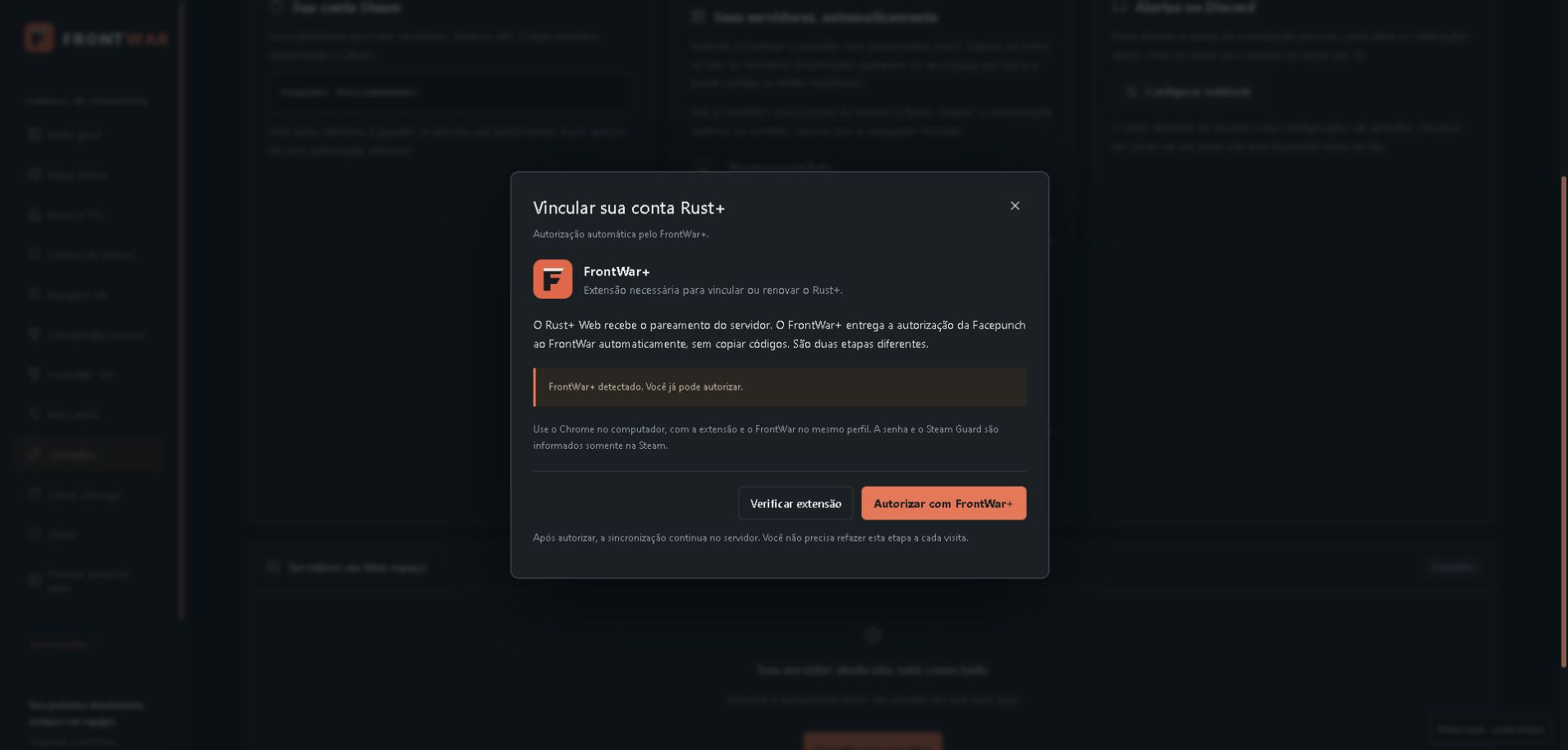
Enlarge screenshot ↗Rust+ Web receives the server pairing. FrontWar+ automatically delivers the Facepunch authorization to FrontWar, without copying codes. These are two separate steps.
Install FrontWar+ from the Chrome Web Store to link or renew your Rust+ authorization.
In Chrome on your computer, open the official listing using the button above. Use the same profile as FrontWar, click Add to Chrome, then confirm with Add extension.
After installing, reload FrontWar and open Connections → Link Rust+ (or Renew authorization). When FrontWar+ detected appears, click Authorize with FrontWar+.
Enlarge screenshot ↗Chrome automatically receives extension updates from the store.
If you used the manual installation, remove the old copy after installing from the store. Your saved FrontWar pairings remain available.
In FrontWar, open Connections → Link Rust+ → Authorize with FrontWar+. Sign in to Facepunch with the same Steam account. The extension returns the result automatically and FrontWar validates the authorization before importing your pairings.
Open Connections →
Enlarge screenshot ↗
Enlarge screenshot ↗After authorization, use Sync now under Connections. Wait up to one minute to view the pairing history. Check the name of the found server and open the Tactical Map.
If the server is missing from the history, resend the pairing request in the game after linking FrontWar. You do not need to enter an IP or token when automatic import finds the pairing.
If you already use Rust+ or had trouble syncing, resend the pairing request from the game. Your server may be saved in Rust+ without a recent request being available for FrontWar to import.
Join the server you play on. Press Esc → Session → Rust+, open Paired and click Try pairing again.
You have allowed push notifications from this server.
Return to FrontWar → Connections and click Sync now. If you just checked, wait one minute after the last check and try again.
After resending in the game, check your pairings again.
Sync nowChecks are spaced one minute apart.Reference: Rust+ Web · Facepunch. Never share the authorization callback in screenshots, messages or with other players.
Consult the symbols, colors, and features to interpret what appears on the map.
Select an area with each side between 12 and 500 meters.
Excludes estimated TC ranges and outlines saved on this map, including clan annotations. Unmarked TCs and buildings are not detected.
Estimated positions for a foundation. Check TCs, obstacles and the required height in the game.
Up to 80 suggestions, prioritizing gentler slopes and less height variation. No results does not mean building is impossible.
Open in dashboardTC on a single foundation. Pulsing white circle with an approximate reference radius of 18 m from the marked point. Adjust the radius to match building privilege in the game. This does not indicate TC monitoring.
Choose the type, name and color in the editor. FrontWar markers do not place objects in the game.
Open in dashboardChoose the type, name and color in the editor. FrontWar markers do not place objects in the game.
Save the marker and reopen it to link a smart switch.
The owner keeps access. Control requires VIP and active team membership.
Open in dashboardChoose the type, name and color in the editor. FrontWar markers do not place objects in the game.
Open in dashboardChoose where the sentry is facing. Rust+ does not report this direction. Without it, we just show a reference circle.
Initial acquisition covers 180°, with a 30 m reference range. Obstacles and height can change the situation in-game; outside the sector does not mean safe.
Open in dashboardOpen the sentry and select Sentry trap or Destroyed based on what you verified in-game.
Open in dashboardThe arrow points from the door to the outside of the garage. Choose the direction on the map (north up).
While drawing, use Add Garage Door to record the entrance and indicate the exit direction.
Open in dashboardWhile drawing, use Add Wall Gate to record its position and exit direction.
Open in dashboardChoose the type, name and color in the editor. FrontWar markers do not place objects in the game.
Open in dashboardSave the point and use Define Base Area to draw the outline.
Status reported by you. When applied, it is recorded in the history of this wipe and visible to the clan along with the description.
Open in dashboardThe type identifies the design. On the map, the building maintains its outline and legend, without an icon in the center.
The drawing uses approximate positions of Rust+ and does not calculate the construction privilege of TC.
Creating and editing base and wall designs requires VIP. Free members can view shared drawings.
Open in dashboardSave the position of TC on this map. To track features and upkeep, install a Storage Monitor to the TC, power it, and pair it to the Rust+; then link the device to this marking.
Open in dashboardPair Storage Monitor alongside TC, with your online character. New pairings are consulted every minute; a contemporary position of your character allows you to position the point approximately. Just installing the item does not send the pairing.
Automatic TC: adjust name and position, maintaining the TC type and the pairing server. The marker remains visible when the monitor is turned off. Once marked as destroyed, it can be removed.
Open in dashboardChoose the type, name and color in the editor. FrontWar markers do not place objects in the game.
Open in dashboardThe cause of death is not reported by Rust+. You can create a tactical point to identify this location.
Open in dashboardThe center is the location of death, not the exact position of the sentry.
Points of this wipe. A new death does not replace locations you have saved.
Open in dashboardInitial acquisition covers 180°, with a 30 m reference range. Obstacles and height can change the situation in-game; outside the sector does not mean safe.
Apply to the rays of your sentries and clan sentries. TC icons, captions, and alerts remain visible. The preference is saved in this browser.
Open in dashboardThe outline depends on the available data for this map. Being outside it does not guarantee you can build.
Enable Monument ranges to see the areas; in Labels, choose whether to display their names.
Open in dashboardThe outline depends on the available data for this map. Being outside it does not guarantee you can build.
Open in dashboardThe radius is automatically calculated by the closed drawing.
Status reported by you. When applied, it is recorded in the history of this wipe and visible to the clan along with the description.
Open in dashboardThe name, design and doors or gates appear to clan members.
The drawing uses approximate positions of Rust+ and does not calculate the construction privilege of TC.
Creating and editing base and wall designs requires VIP. Free members can view shared drawings.
Open in dashboardAfter 5 minutes without recovery, the red ends and the TC is marked as destroyed by the rule. Yellow continues as long as upkeep is below the threshold. A general server crash does not trigger the raid alert.
The monitor stopped reading. Power outage or removal of the monitor can also trigger this rule. A general connection drop does not trigger the alert.
Waves come out of TC, expand and disappear. Standard radius: 50 m, adjustable from 50 to 2,000 m. Visual estimation: The monitor does not detect sounds or measure the audible range of rockets or explosives. These options are only saved in this browser.
Open in dashboardThe TC symbol remains on the map. After 5 minutes of red alert without recovery, it is marked as destroyed and can be removed. A positive maintained reading resets the monitor. Configure the yellow warning in Open TC → Configure alert.
Open in dashboardChoose a period or the last deaths of each player in this wipe. Registration happens automatically via Rust+.
Open in dashboardChoose a 12 × 12, 24 × 24 or 40 × 40 m area. The filter uses terrain, rivers and building restrictions from the map. A smaller base may fit where a larger area would be excluded.
Suggestion based on the terrain of this wipe. Check out the free area, existing TCs, rocks and the actual construction limit in the game.
Open in dashboardThe Tactical Map automatically gathers the game markings and saved points of those who connect to the same clan, server and wipe. Each player edits their own points.
Open in dashboardPositions queried every ~5 s while the map is open.
Open in dashboardMark position uses your character's current location. Dragging stops tracking.
Open in dashboardThe drawing uses approximate positions of Rust+ and does not calculate the construction privilege of TC.
Creating and editing base and wall designs requires VIP. Free members can view shared drawings.
While drawing, use Add Garage Door to record the entrance and indicate the exit direction.
Open in dashboardStay by the wall gate, on the outside, and wait for your position to update. The arrow indicates the exit.
Walls are open lines: you do not need to join the last point to the first.
Open in dashboardThe TC automatic marker is always visible, even when the monitor is not communicating.
Open in dashboardPreference for this browser only, including points shared by the clan. Details are still available on hover.
Open in dashboardThe other members continue to see these points. Unhide returns the marker, its range, and its outline to your map.
The TC automatic marker is always visible, even when the monitor is not communicating.
Open in dashboardYour preference is saved in your account. Does not change the view of colleagues or delete history. Manually saved kill tags do not fall within this limit.
Personal and clan death history requires VIP. Deaths not received during a disconnection may be missing. Manually saved Tactical Points remain in Saved deaths.
Open in dashboardAté 50 mortes por jogador, sempre deste servidor e wipe. A escolha vale para você e cada integrante vinculado do clã. Se houver menos registros, aparecem os disponíveis.
Clan history and recent deaths require VIP. The Last Personal Death remains available on Free.
Open in dashboardCiclo de wipe: Deixe vazio para remover a previsão. A contagem parte do último wipe real recebido do Rust+. Servidores podem mudar a programação; só uma nova data do jogo inicia outro wipe no histórico.
Open in dashboardOrganize your points and monitor paired monitors.
Team and device events will appear here.
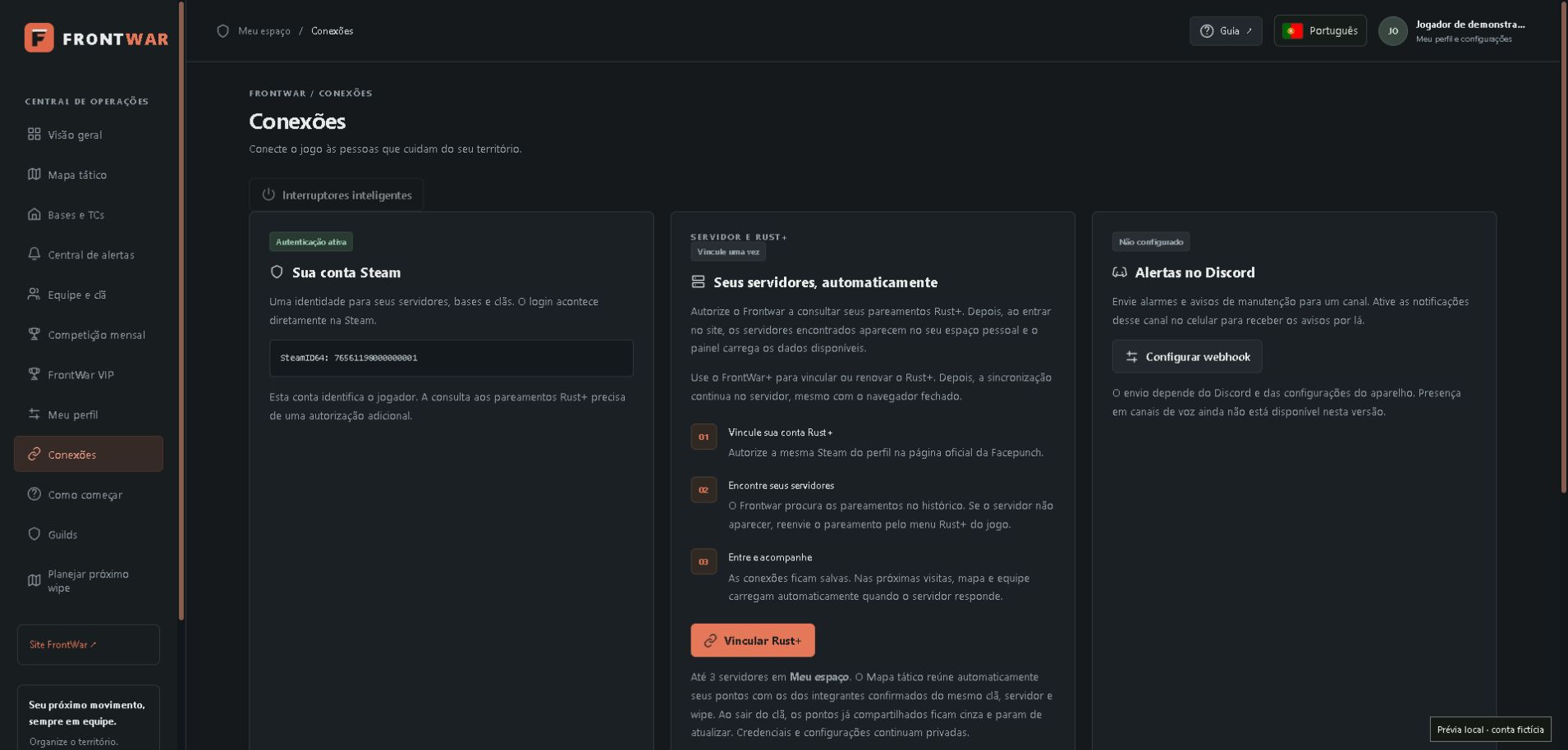
Open in dashboardAn identity for your servers, bases and clans. Login takes place directly at Steam.
Open in dashboardUnder Connections, click Link Rust+. Follow the instructions to authorize in Facepunch, copy the return from the browser's network panel and paste it into the FrontWar form.
Open in dashboardNo tags received in this reading. Keep the marker fixed on the game map and update after a few seconds. If it remains empty, the server may not make these markings available through Rust+.
Open in dashboardYour settings are private. Tactical Map points are automatically pooled with the game clan; Guest spaces are a separate option.
Open in dashboardThis list is the game team, which can be smaller than the clan. Query approximately every 20 seconds.
Positions queried every ~5 s while the map is open.
Open in dashboardA marker on the map records the location, but does not prove the status of TC. For TC readings, install and pair a Storage Monitor. For alarms, use a Smart Alarm connected to the base circuit and configure the Discord webhook in Integrations.
Open in dashboardShipping depends on Discord and device settings. Presence on voice channels is not yet available in this version.
Open in dashboardTeam and device events will appear here.
Open in dashboard1 point per hour of protection monitored for each TC. The territory ranking counts peak active TCs, not base area or material consumption.
Only Storage Monitors who have already confirmed protection from TC participate. Manual markers and regular boxes do not score. Lack of reading stops the accumulation.
Open in dashboardClan history and recent deaths require VIP. The Last Personal Death remains available on Free.
Open in dashboardTry another term or browse all categories.
The same symbols as the map, with names to help identify them. The selected type determines the options available in the editor.
Illustrations are references. The map only shows data received from Rust+ and points recorded by players.